
All Images
Introduction to OpenRefine
Importing Data and Getting to Know the OpenRefine User Interface
Figure 1
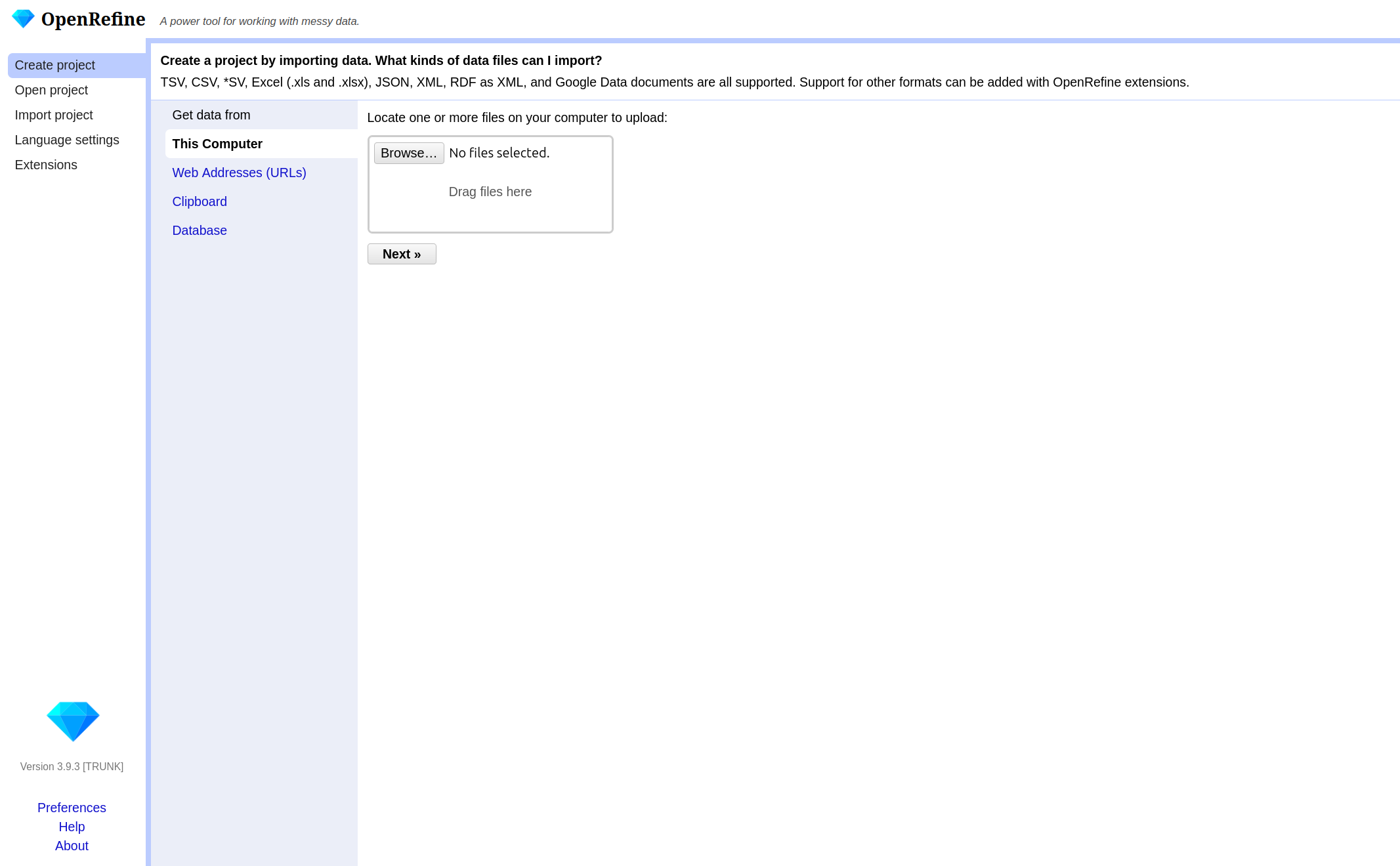
Screenshot of the Import Data Window
Figure 2
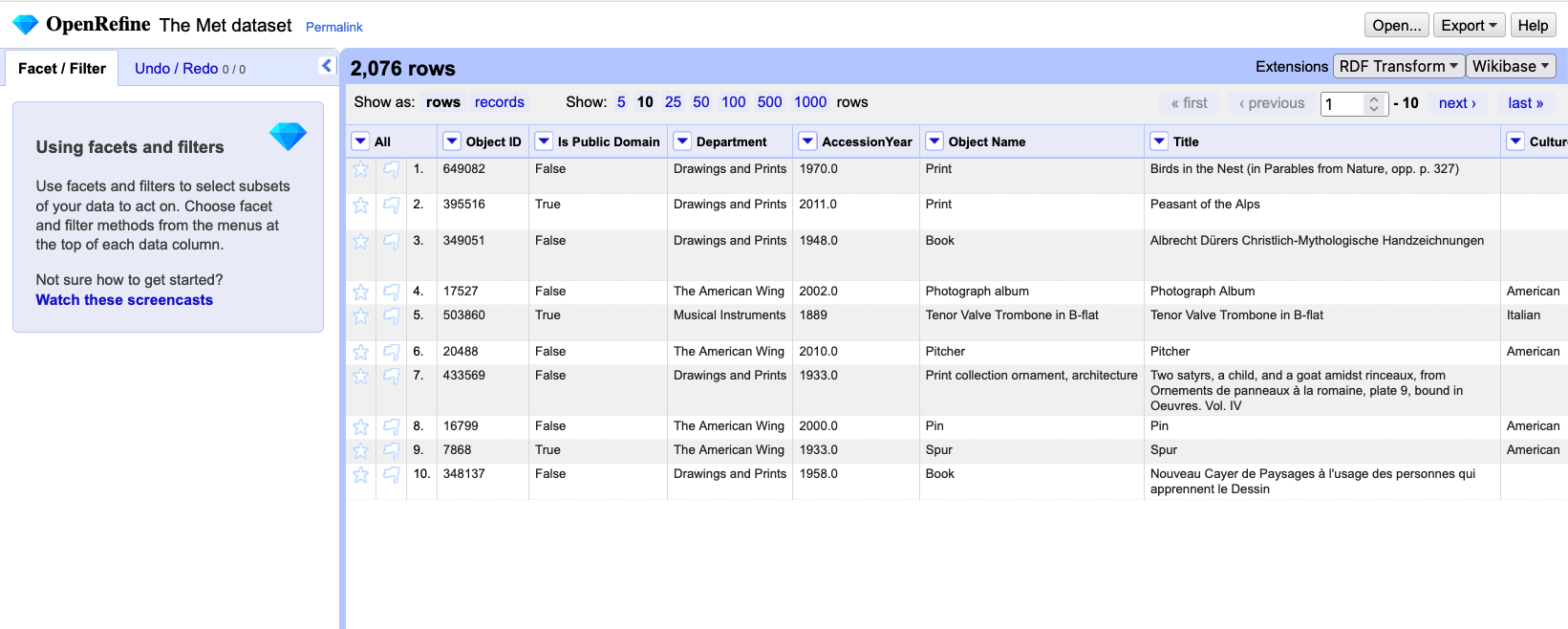
Screenshot of the user interface
Exploring Data
Custom Facets and GREL
Figure 1
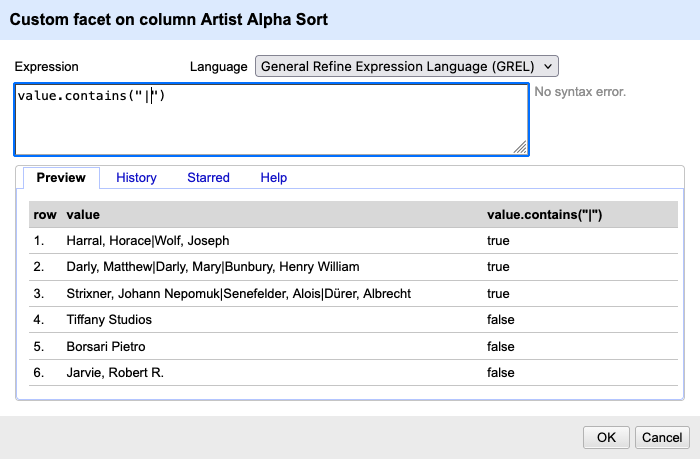
Screenshot of the Custom facet on column …
Transforming Data
Figure 1
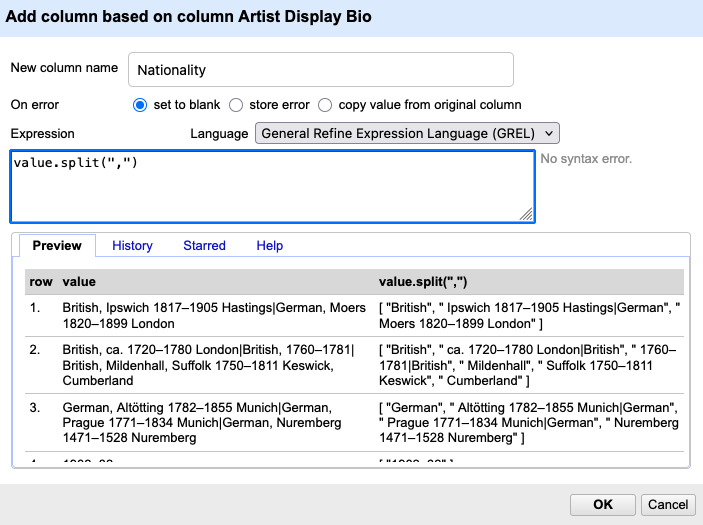
Screenshot of the Add column based on column
…
Figure 2
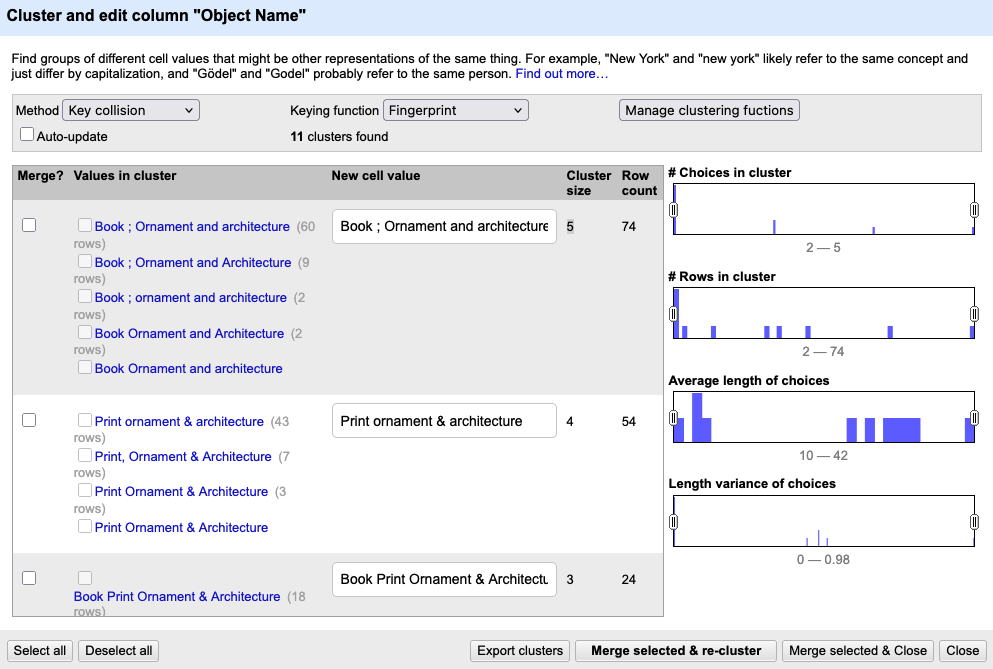
Screenshot of the Cluster and edit column
…
Reconciling Data with External Data Sources
Figure 1
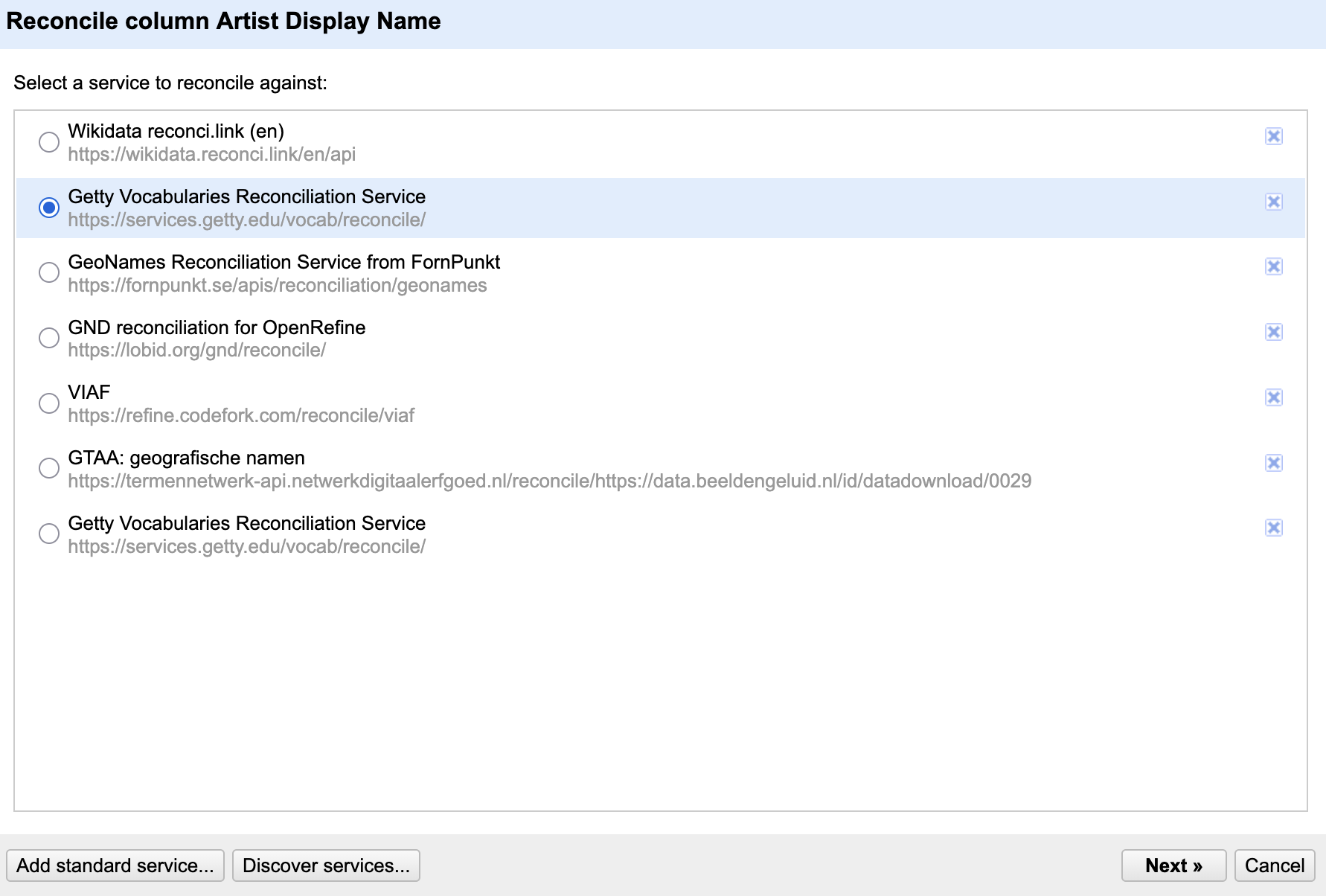
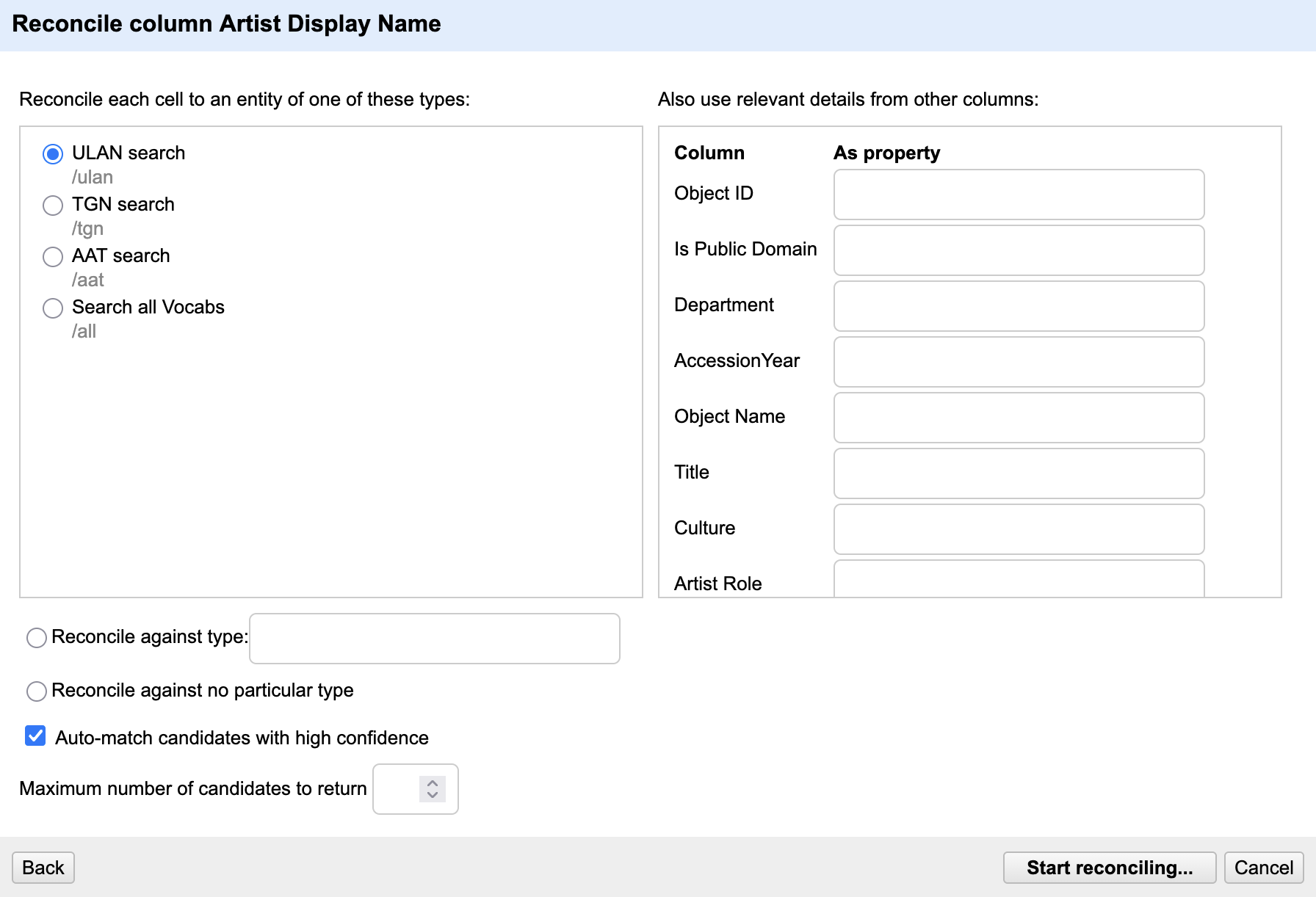
Figure 2

Screenshot of the Reconciliation Candidates
Review
Exporting and Importing Data and Workflows
Figure 1
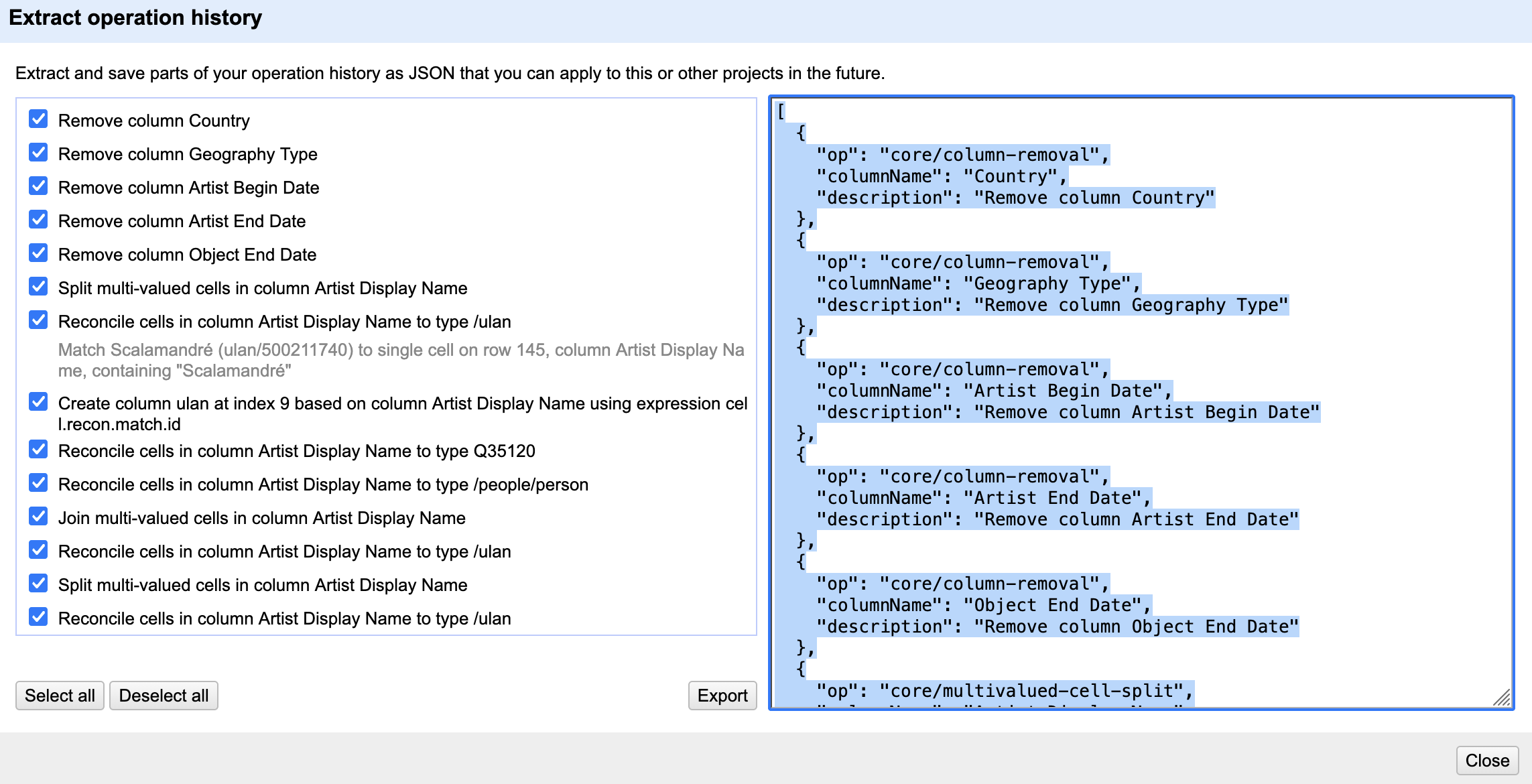 4. Save the processing steps
to a JSON file by clicking
4. Save the processing steps
to a JSON file by clicking Export or copy it manually to
your clipboard and paste it into a file on your computer.